Sukam Apps CRM is Listed in Gallabox Integrations
Sukam Apps CRM appears in the Available Integrations list inside the Gallabox app, alongside other CRM tools. Gallabox describes it as a way to interact with CRM leads and customers on WhatsApp.
So if your team already uses Gallabox for WhatsApp, you can find Sukam Apps CRM directly in your Gallabox account under Integrations. Once connected, you can send WhatsApp broadcasts to your CRM leads using your Gallabox templates, as shown in the steps below.
Send WhatsApp Broadcast to Leads and Update Status
1. Note that Gallabox Broadcast follows a user-based permission system. Only users with the “Send WhatsApp Broadcast” permission enabled can send messages.
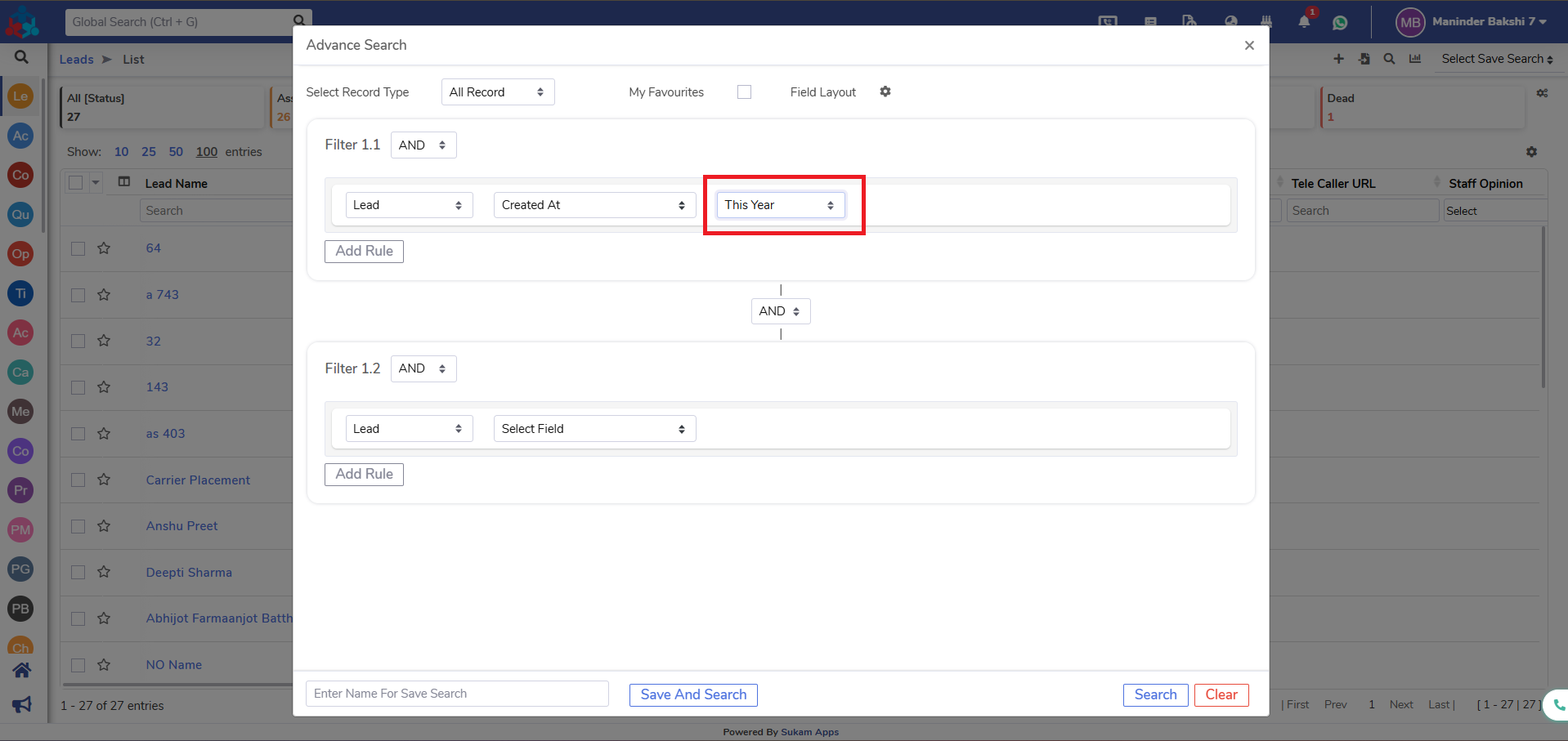
2. Filter your audience in the CRM as usual. Once the desired leads are selected, you can send the broadcast to multiple leads at once.
3. Select leads from the List View page. Broadcasts can be sent in batches of 10, 25, 50, or 100 leads at a time.
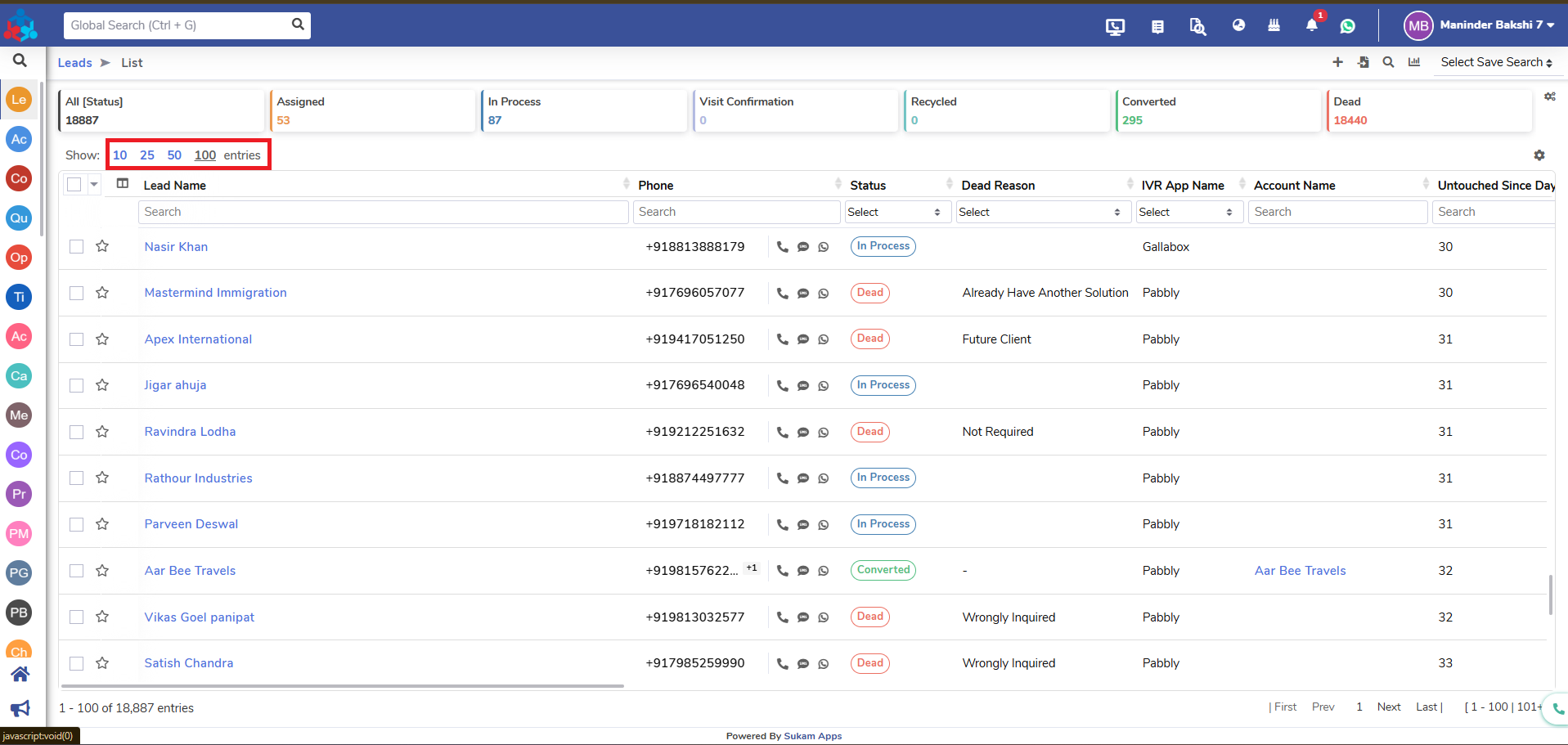
Sending the WhatsApp Broadcast Campaign
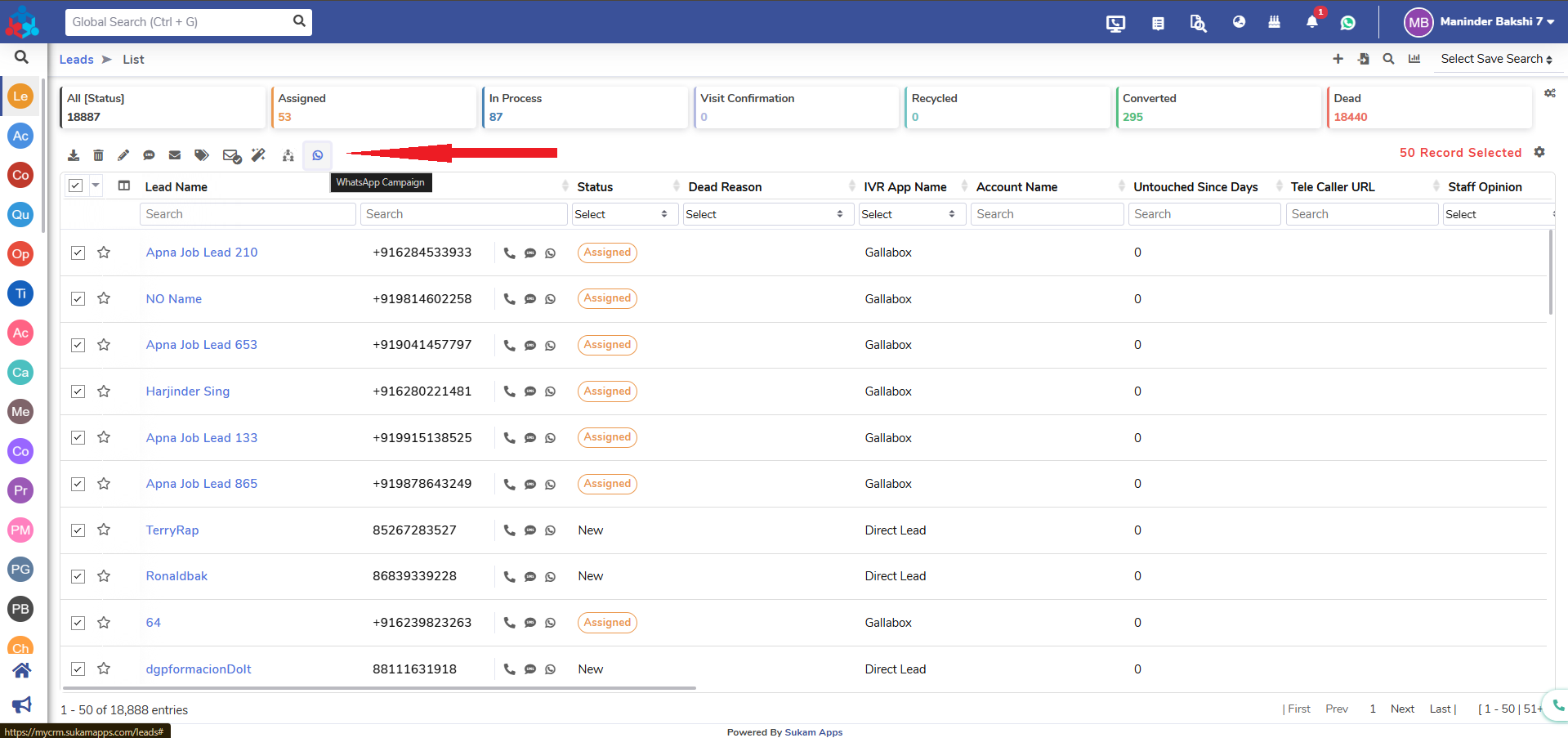
4. Click “Send WhatsApp Campaign.”
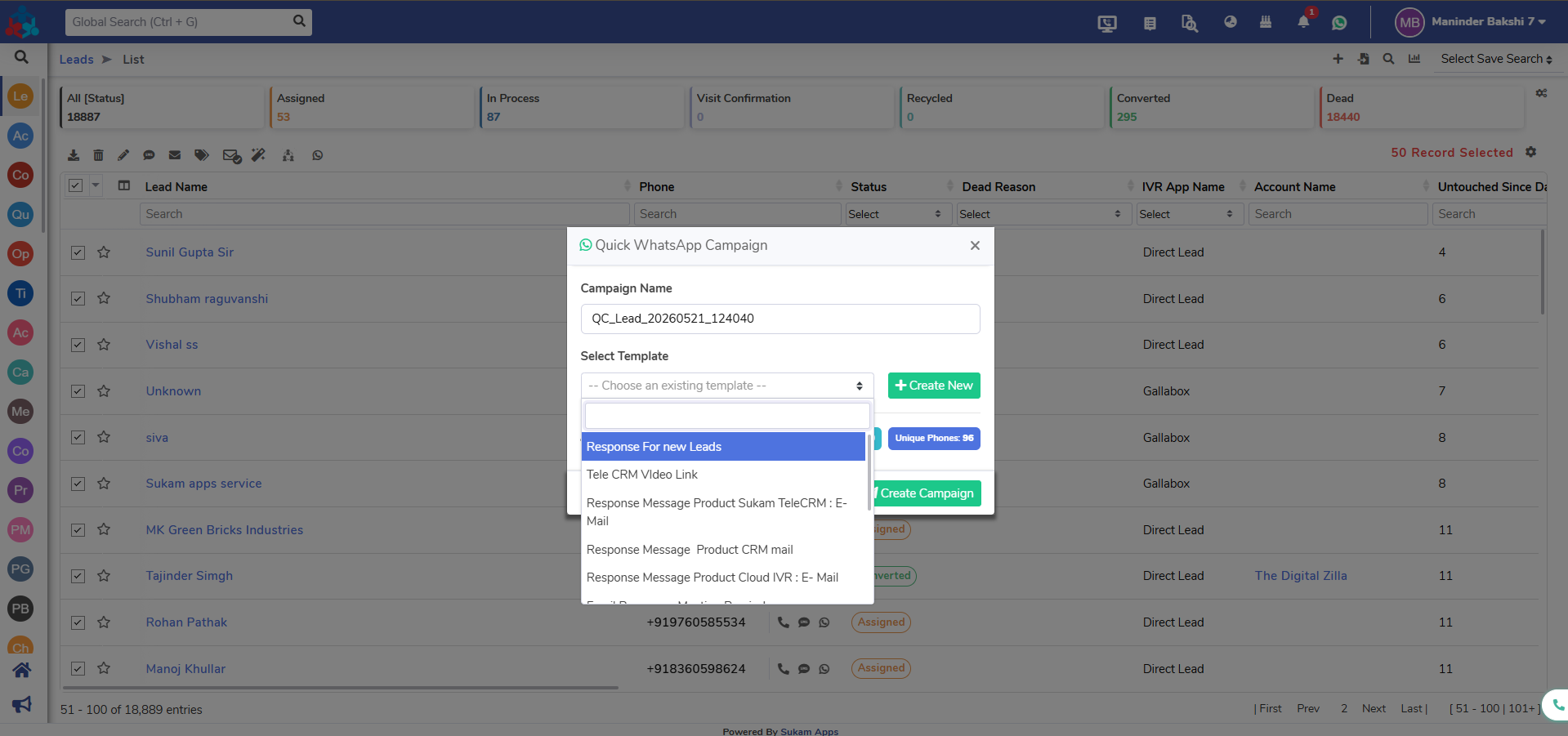
5. Select a template from the screen. Note that templates must be created exclusively within Gallabox.
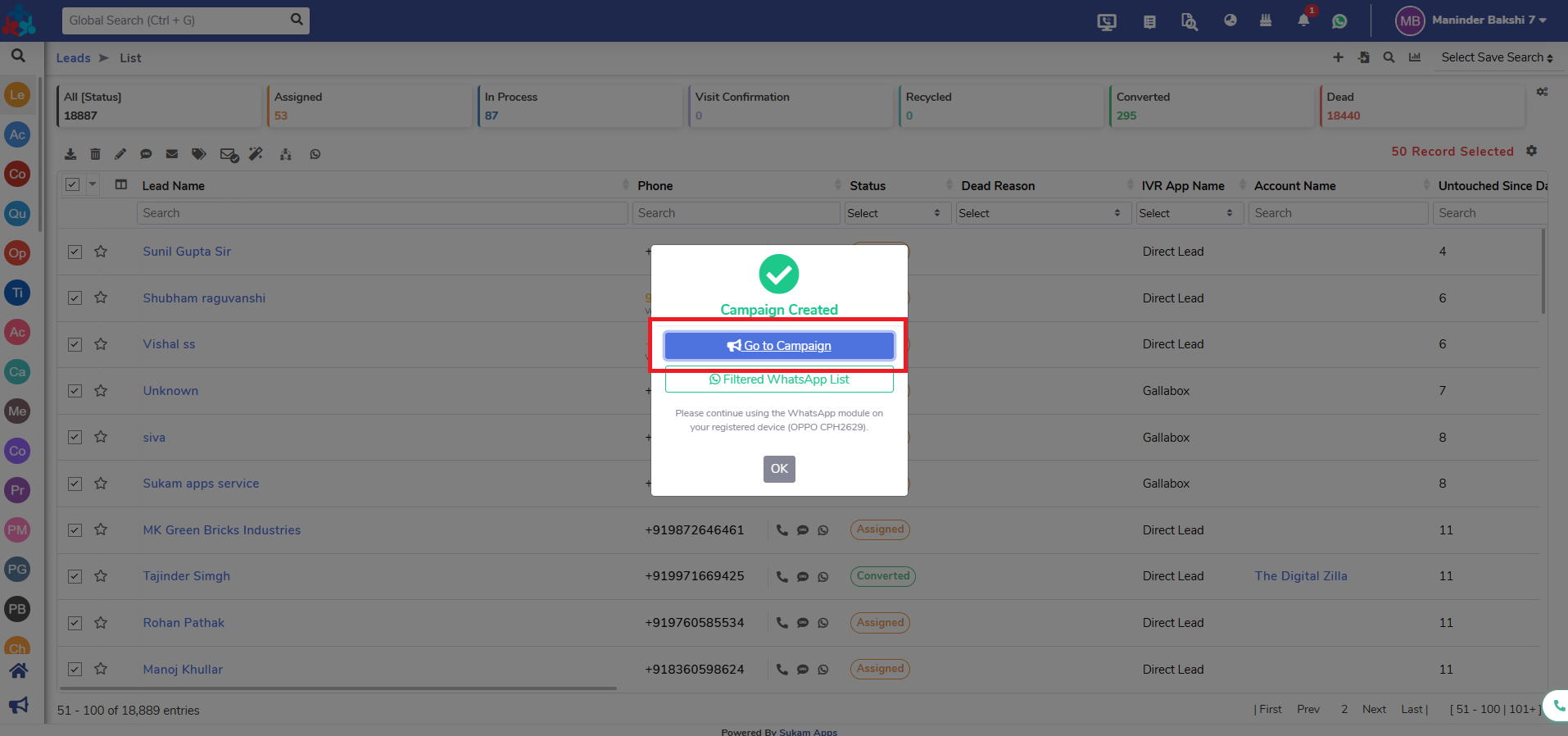
6. Click on “Go to Campaign.”
Setting the Broadcast Time and Going Live
7. Select your desired time and the Sender User who will receive broadcast replies. You must select this user within the Sukam Apps CRM.
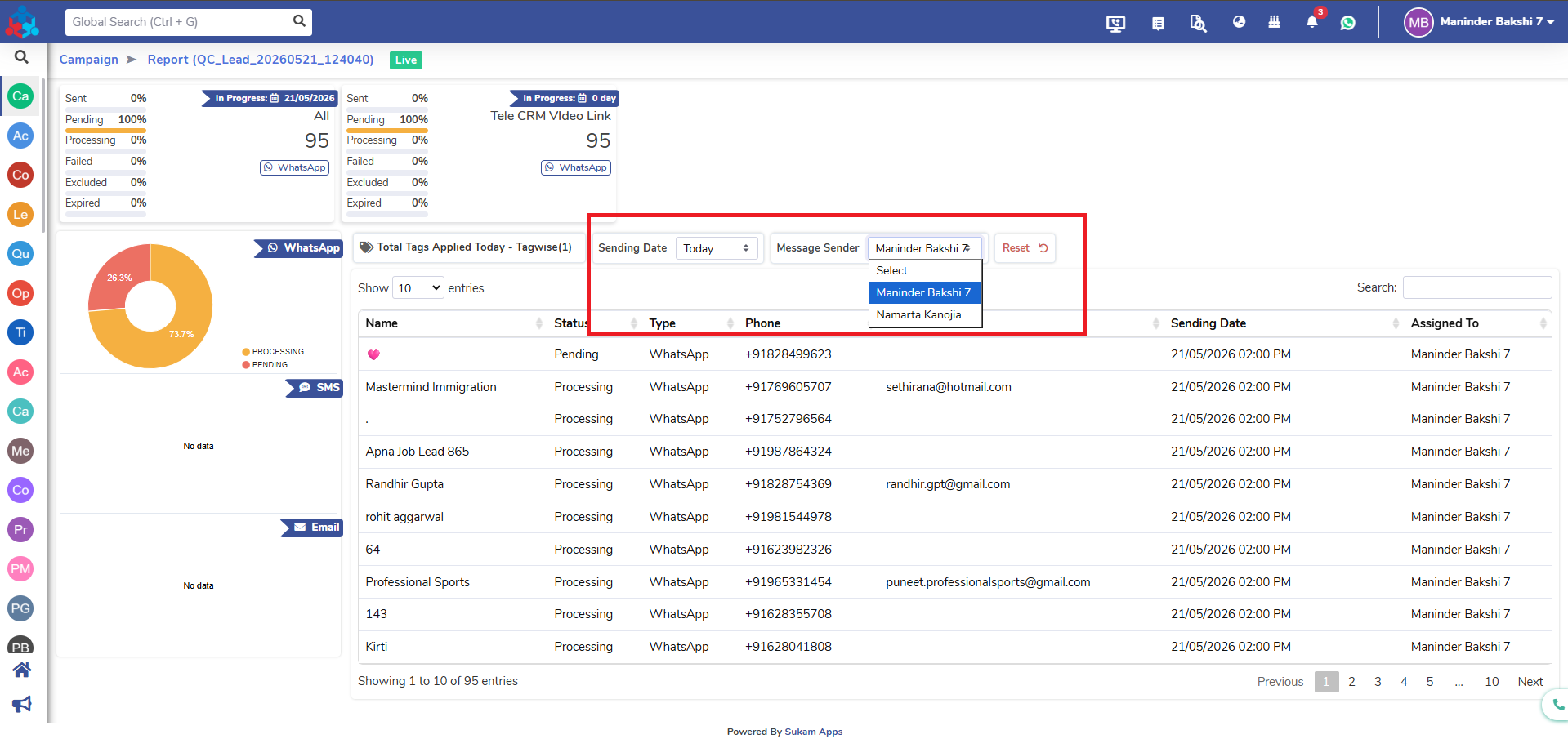
8. Click on “Live.”
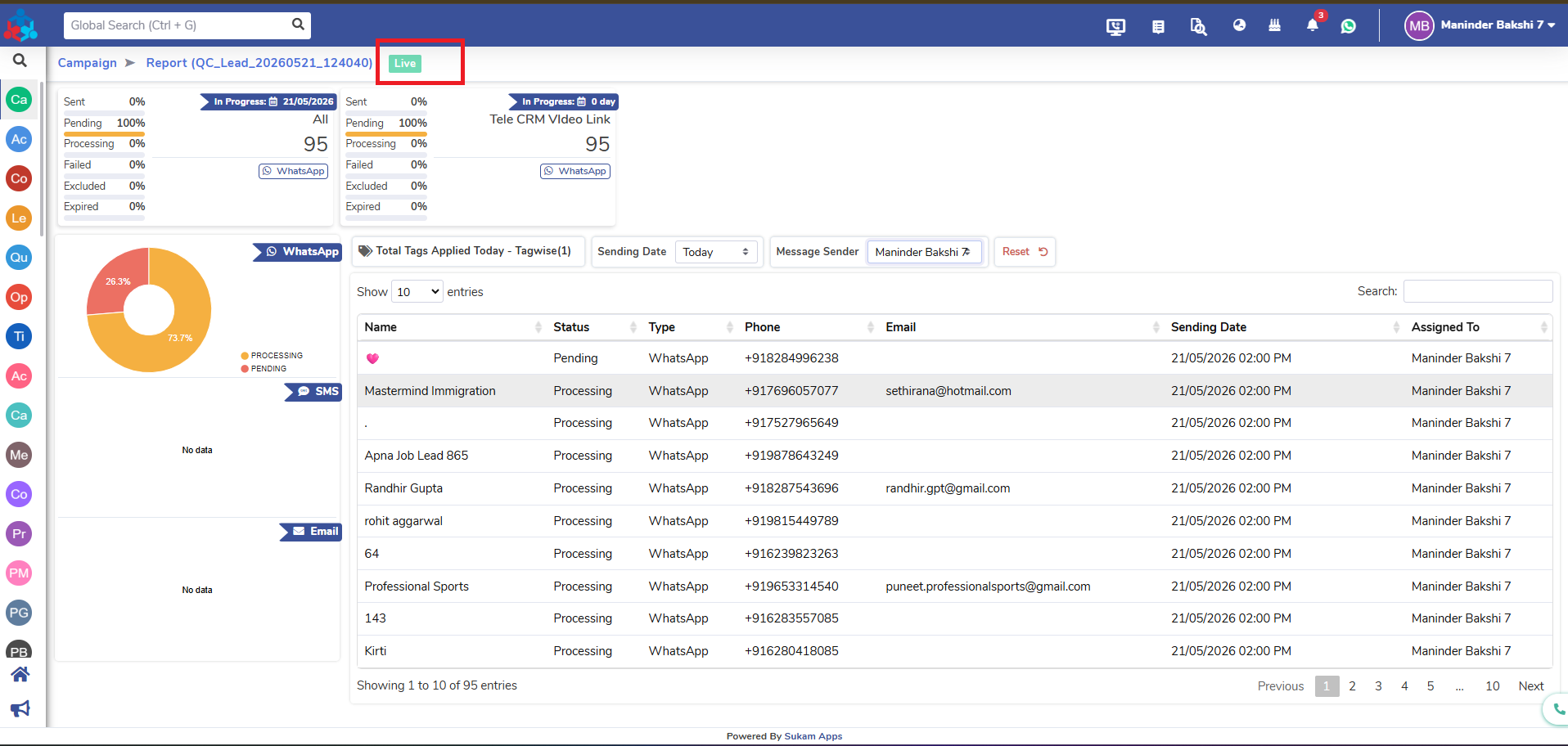
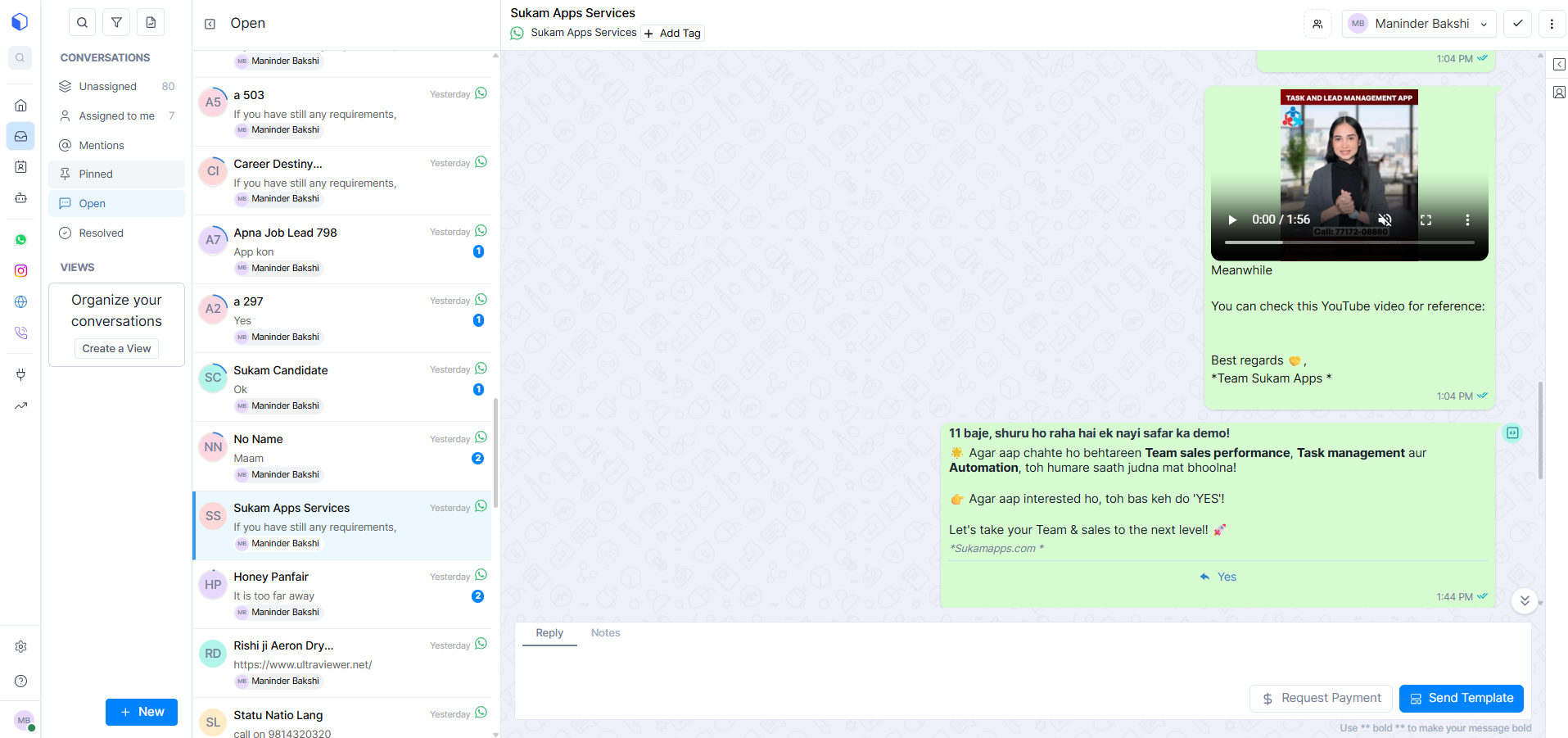
9. The message will then be broadcast to the selected leads or contacts.
Tracking WhatsApp Broadcast Delivery Reports
10. To access reporting, click on a specific campaign.
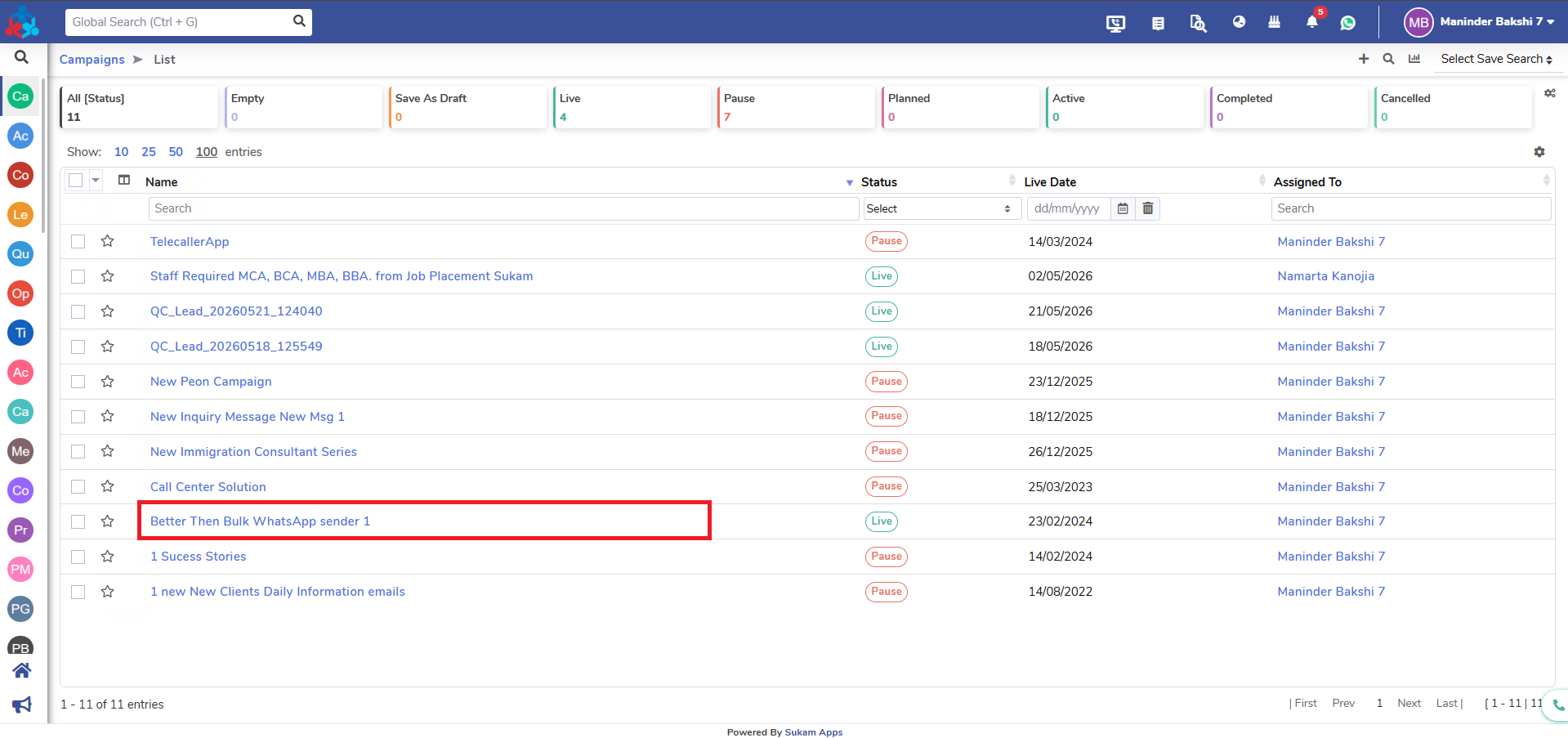
11. Click the “Reports” button located at the top right side.
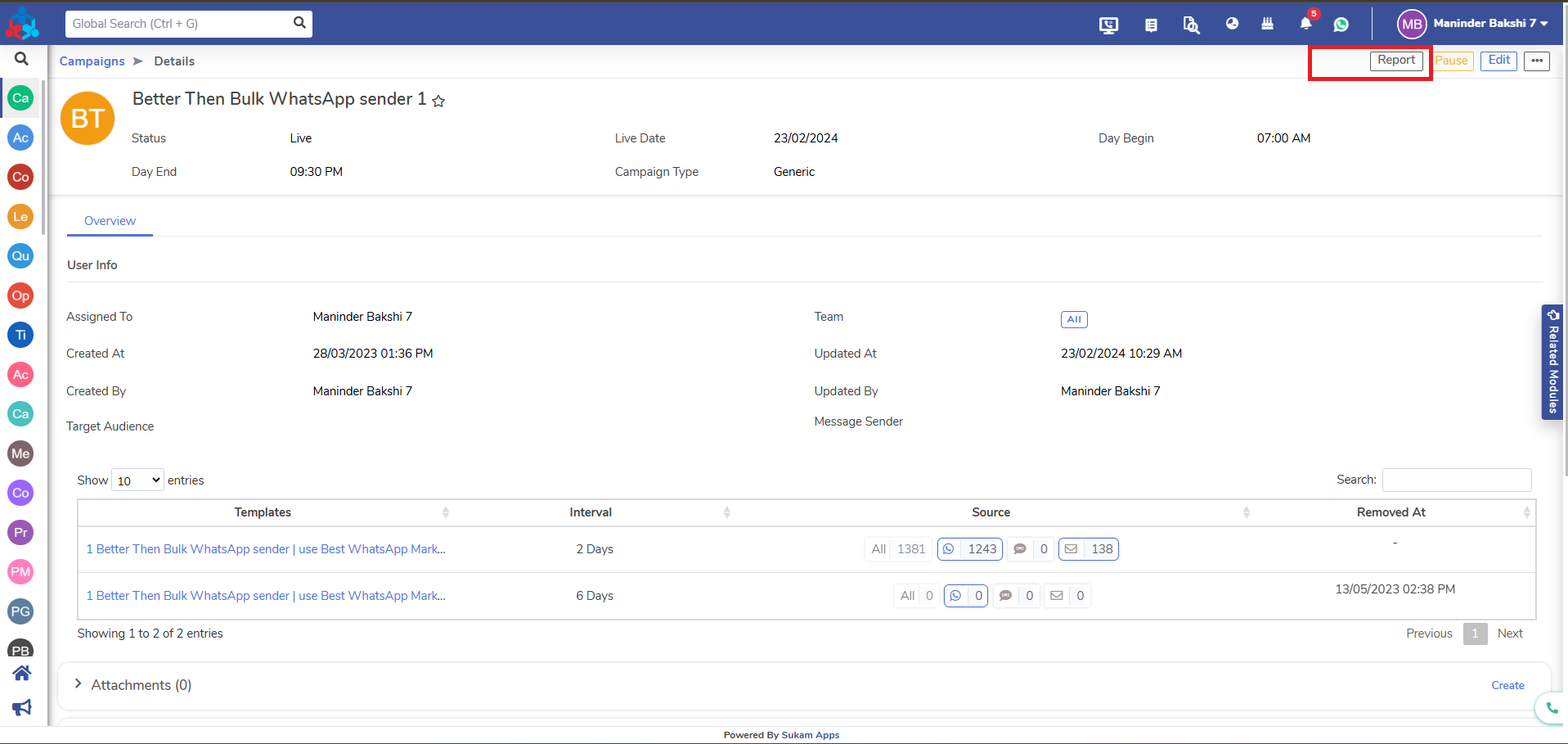
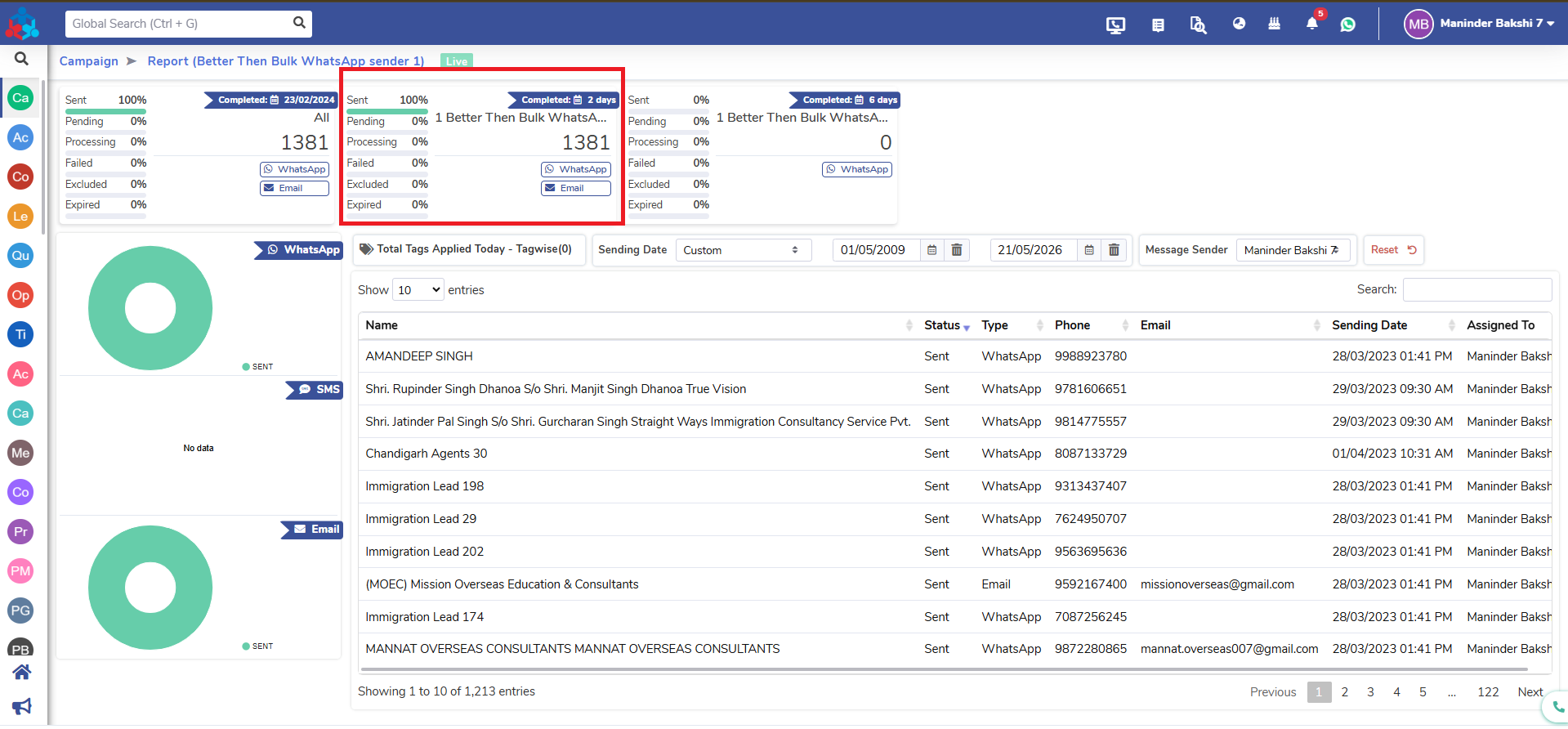
12. You will find detailed reports for all delivered and non-delivered messages.